Some common issues are caused by user or server errors. This documentation includes error examples, issue reporting steps, and possible solutions.
Login
Some common issues found during the Login process.
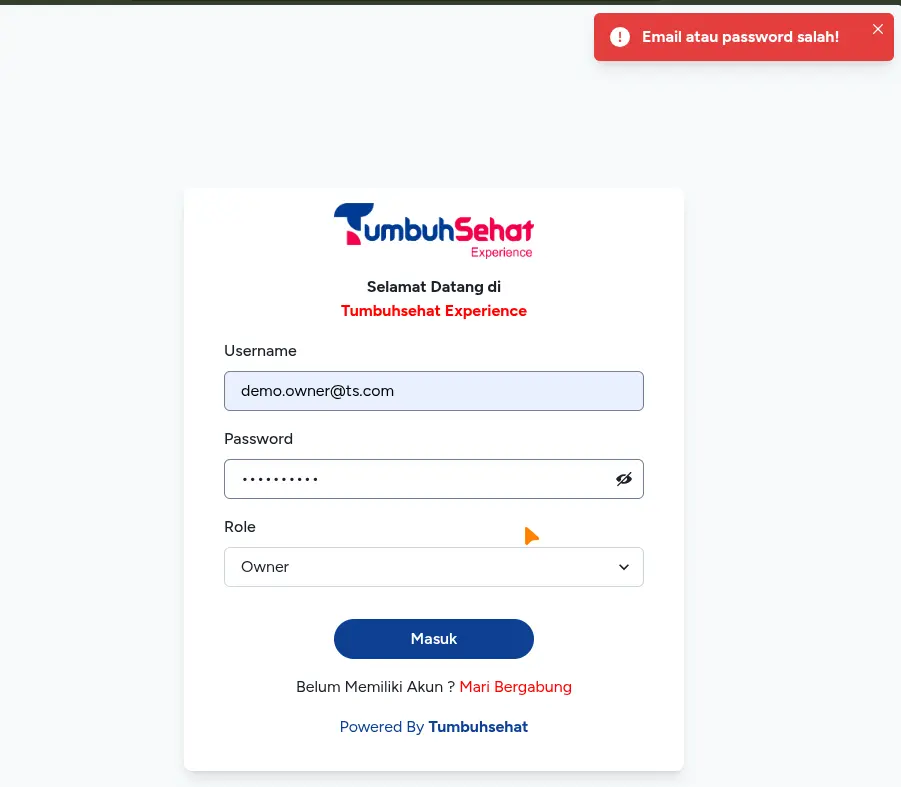
Incorrect Email or Password
Double-check the Email and Password fields before logging in. If you forgot your account details, contact us to reset your password by providing your email.
Credential Error Example
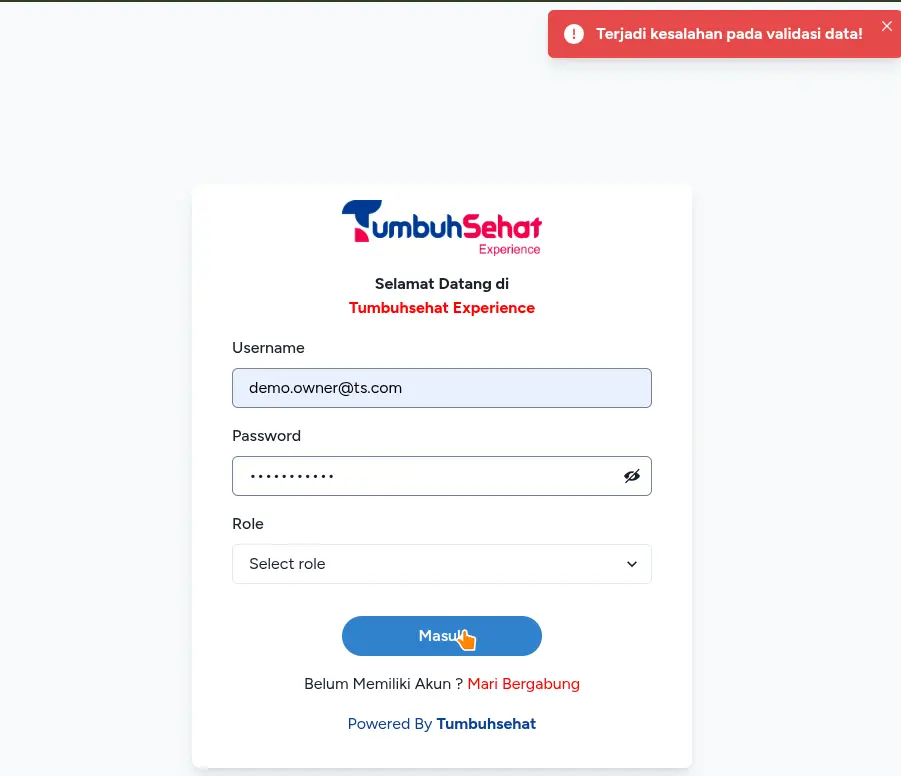
Data validation error
Double-check the Email, Password, and Role fields before logging in. If you forgot your account details, contact us to reset your account or verify it by providing your email.
Credential Error Example
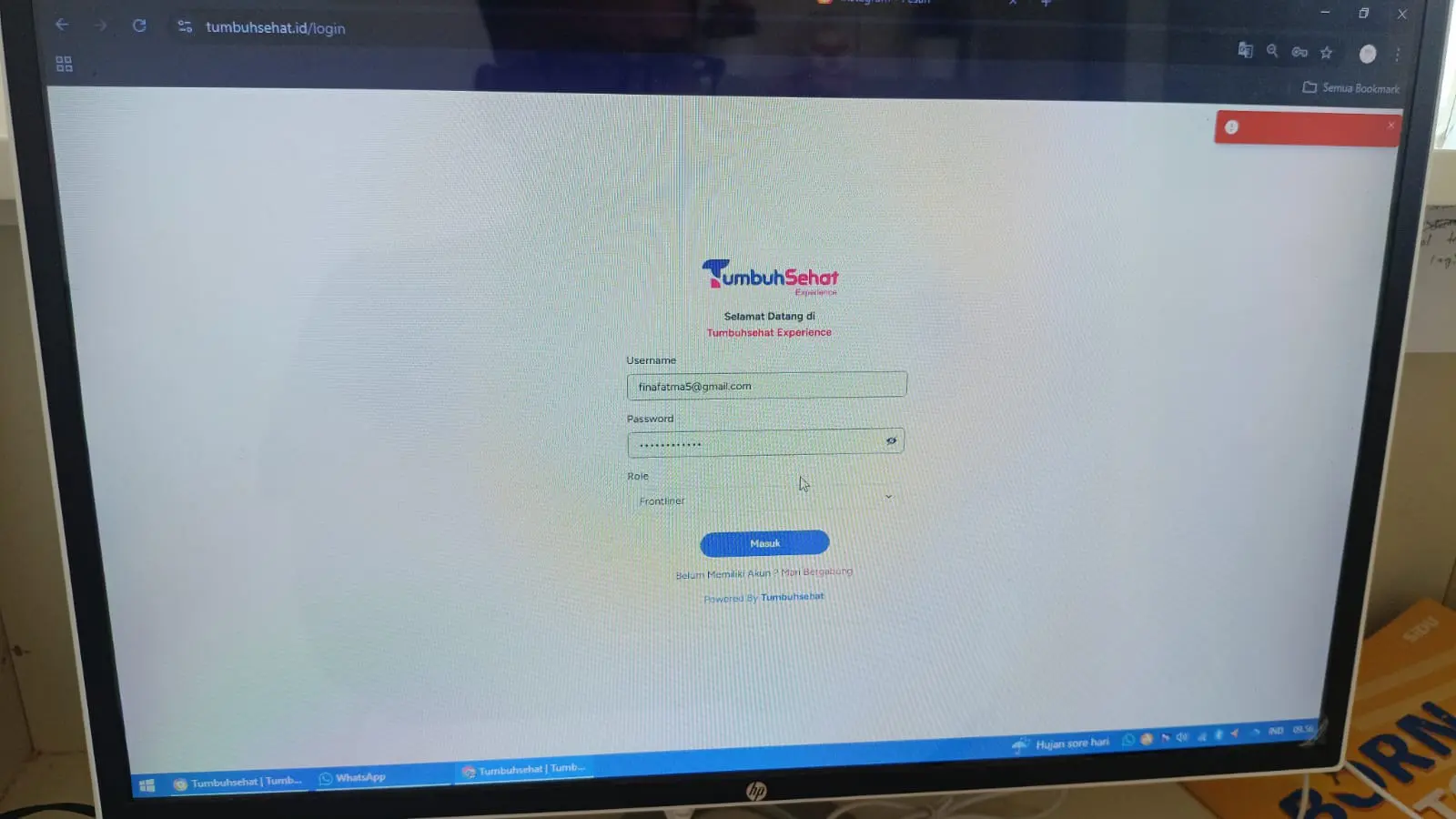
Error without details
Error message not displayed
If you encounter this condition, follow the steps below for reporting:
Please use Google Chrome when creating this report.
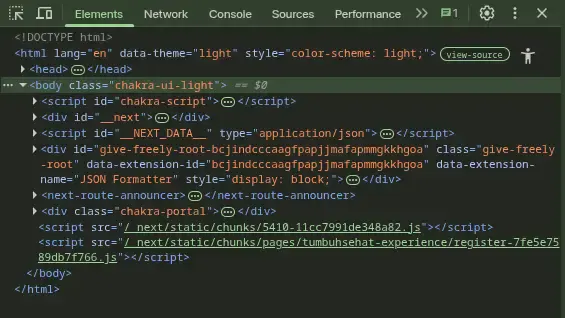
On the browser page where the issue occurs, press F12. You should see (or find) a view like this:F12 View
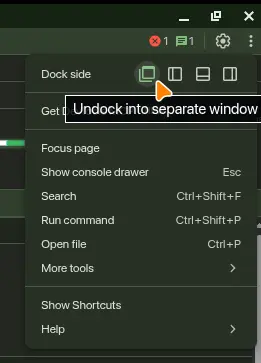
Make it fullscreen. Click the three-dot button in the top-right, near the
icon. In Dock side, choose Undock (the leftmost option), then maximize the window or press Windows + Up Arrow
:Fullscreen
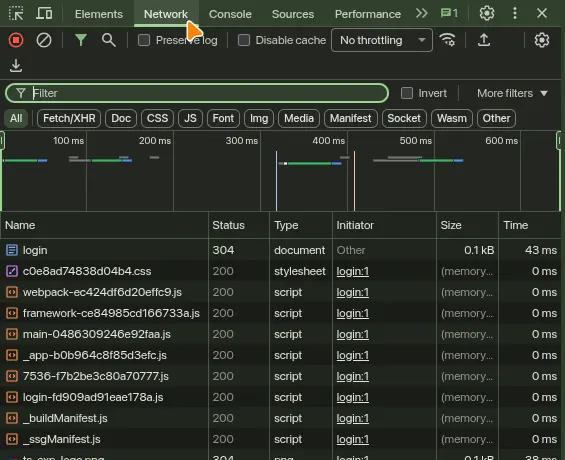
Select the Network tab, as shown in the image (located in the same row as the Elements tab).Select Network TabIf the Network tab is not visible, click the >> button as shown below and select Network.Complete tab menu button
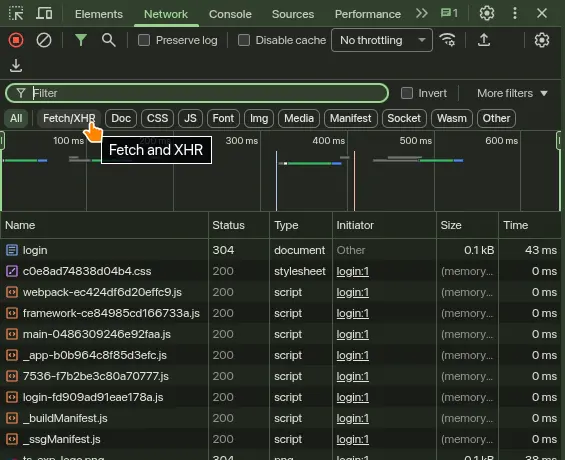
In the panel, find the filter row under the search box and select the Fetch and XHR filter.Select Fetch and XHR filter
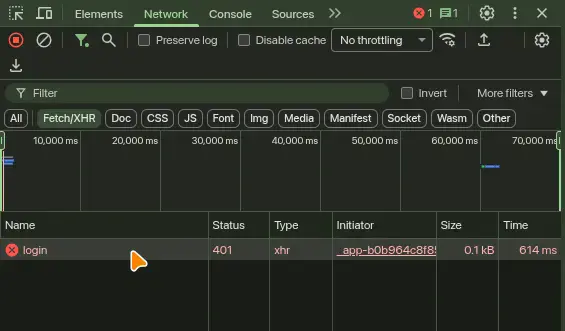
Keep this panel open. Try logging in to TumbuhSehat again. If the error still appears, return to this panel and click the login error entry.Select the login error entry
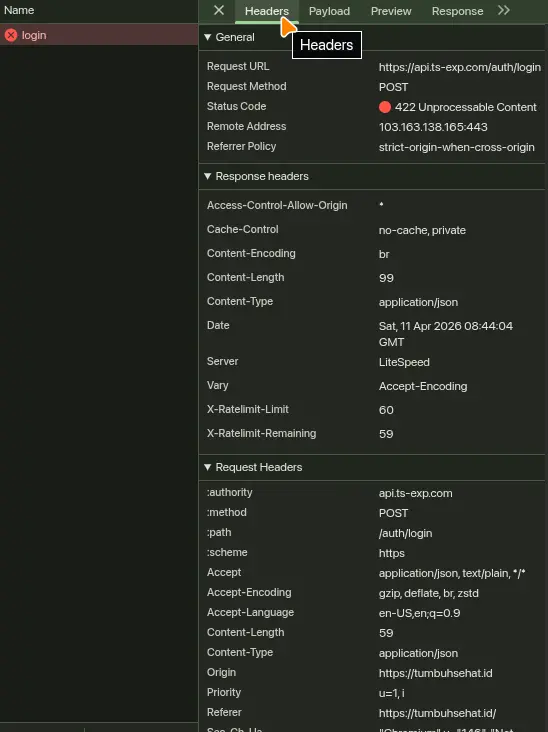
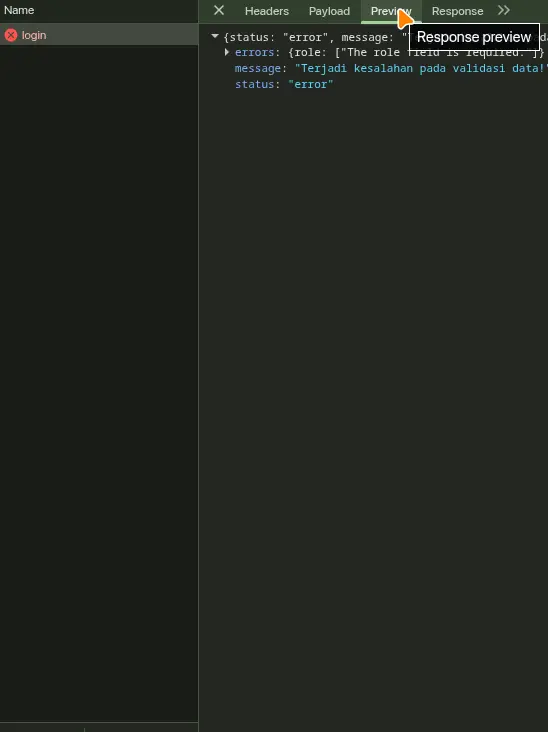
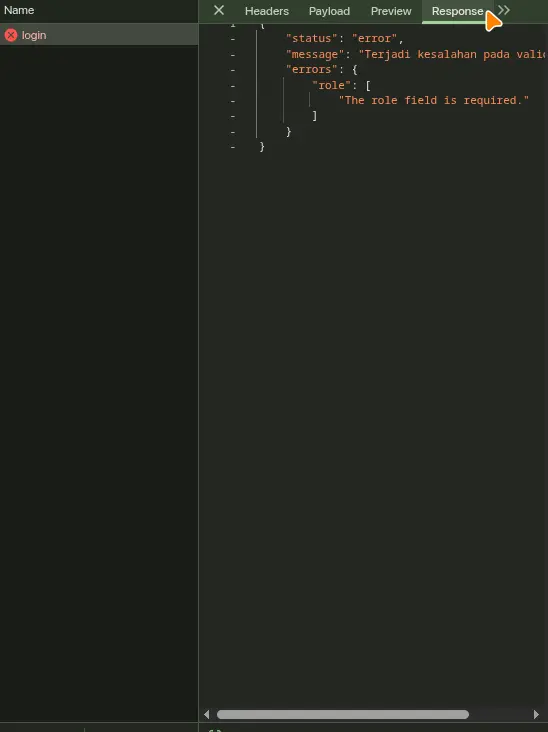
To help the developer team identify the issue, include 3 screenshots from the Headers, Preview, and Response sections, as shown below: